
Permissions over others
Follow these steps to configure permissions over others:
1. Open the Permissions over others tab.
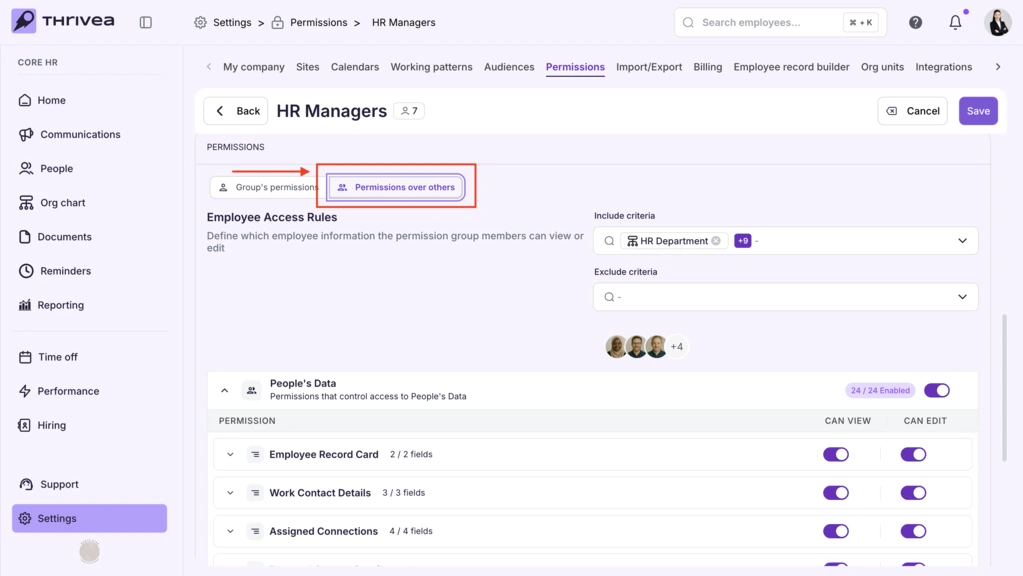
2. Review the purpose of this tab: it defines which employee information permission group members can view or edit for others.
3. Define Employee Access Rules using the available cards: Criteria and Data Fields.
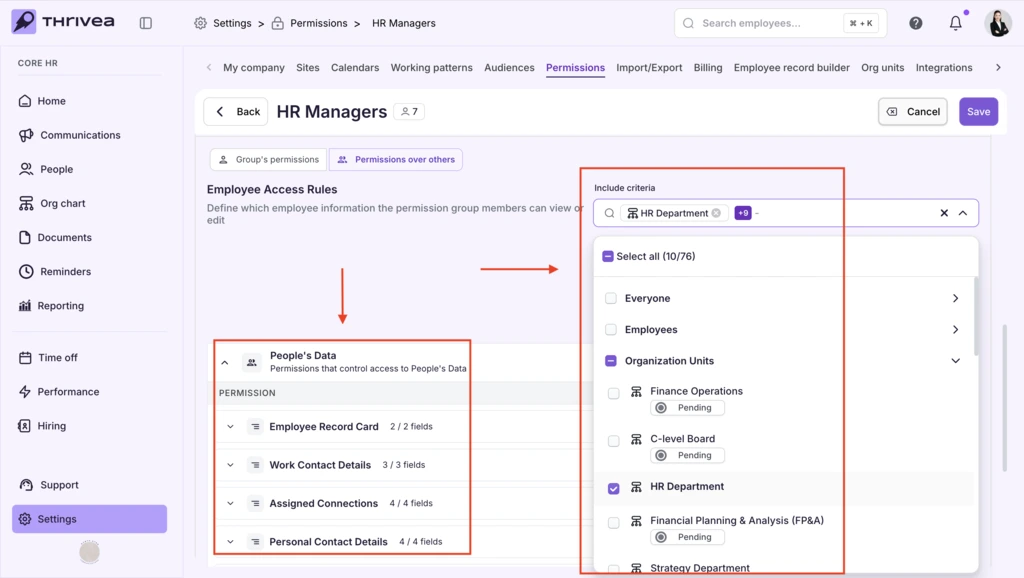
4. Set Include criteria:
Select the employees or groups who should have access.
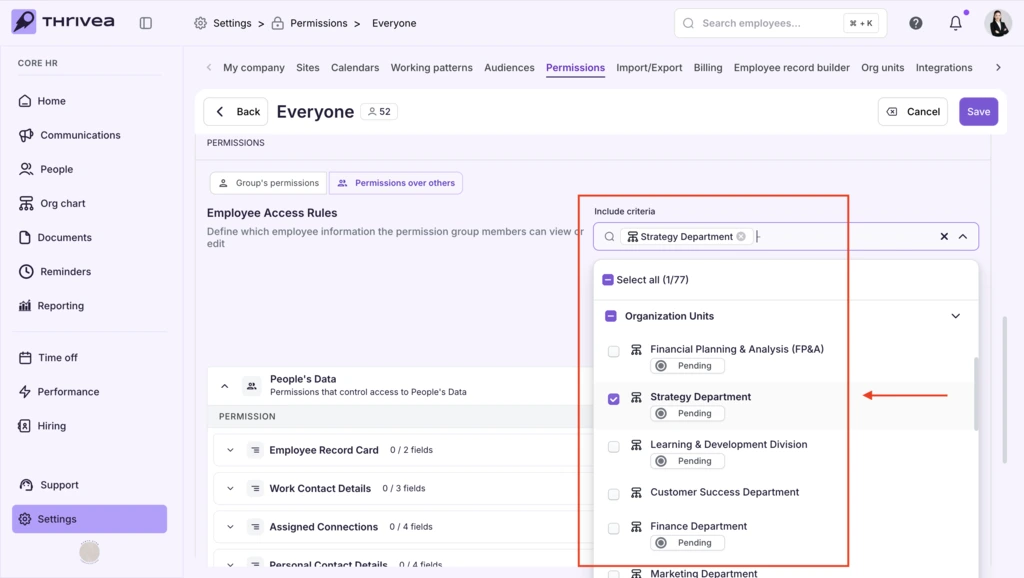
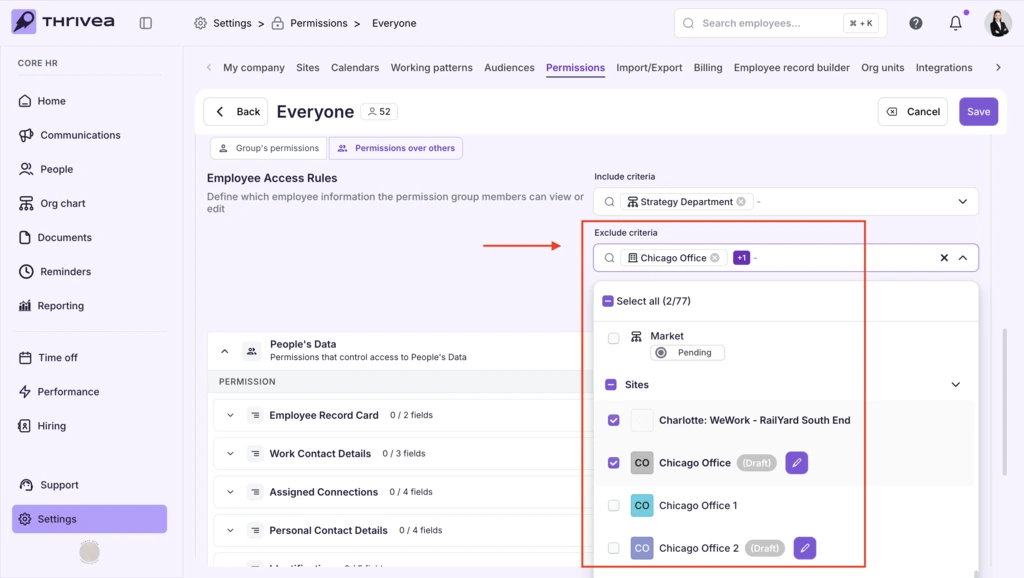
5. Set Exclude criteria:
Select the employees or groups who should not have access.
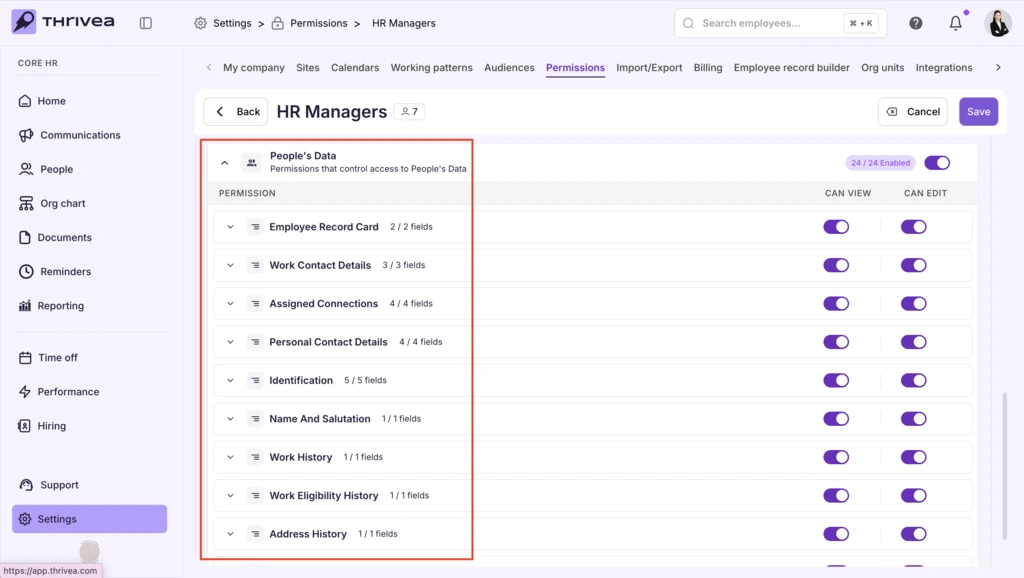
6. Configure People’s Data:
Identify which profile fields (e.g., contact details, salary, work history) will be accessible.
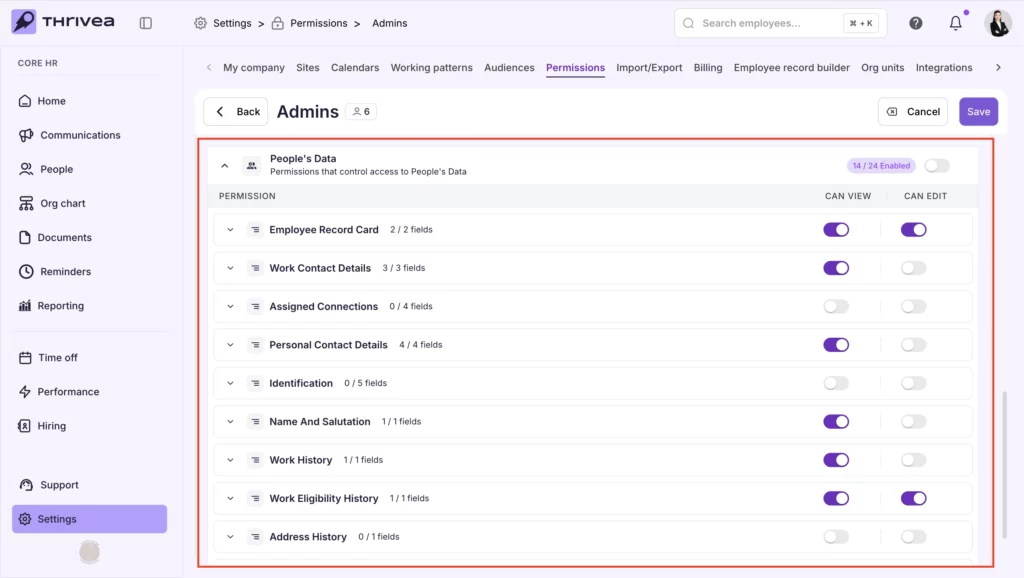
7. Proceed to Detailed Permission Setup for each data category.
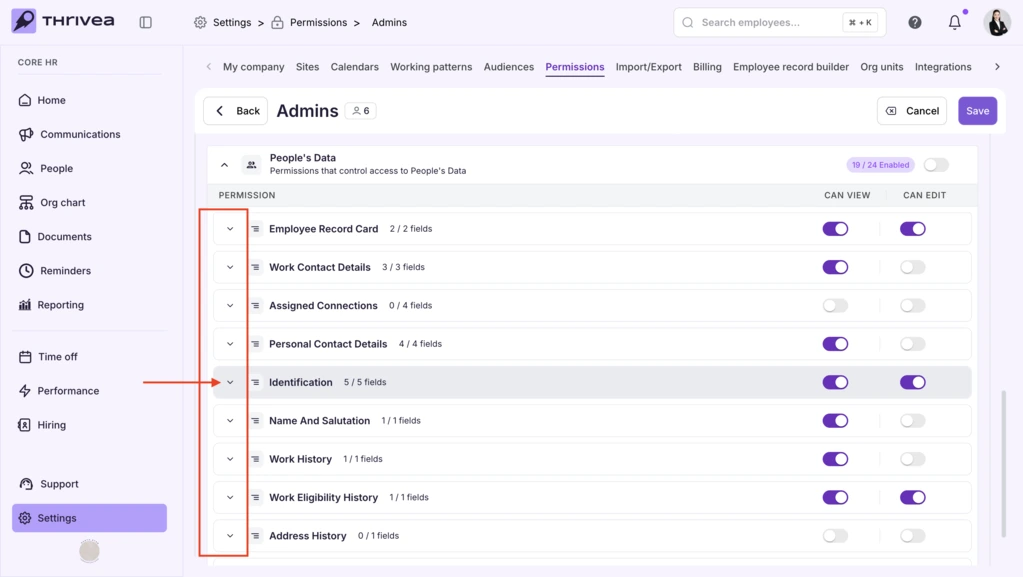
8. Choose how to grant access within each category:
8a. Use Enable All (Right Switch) to activate all fields at once.
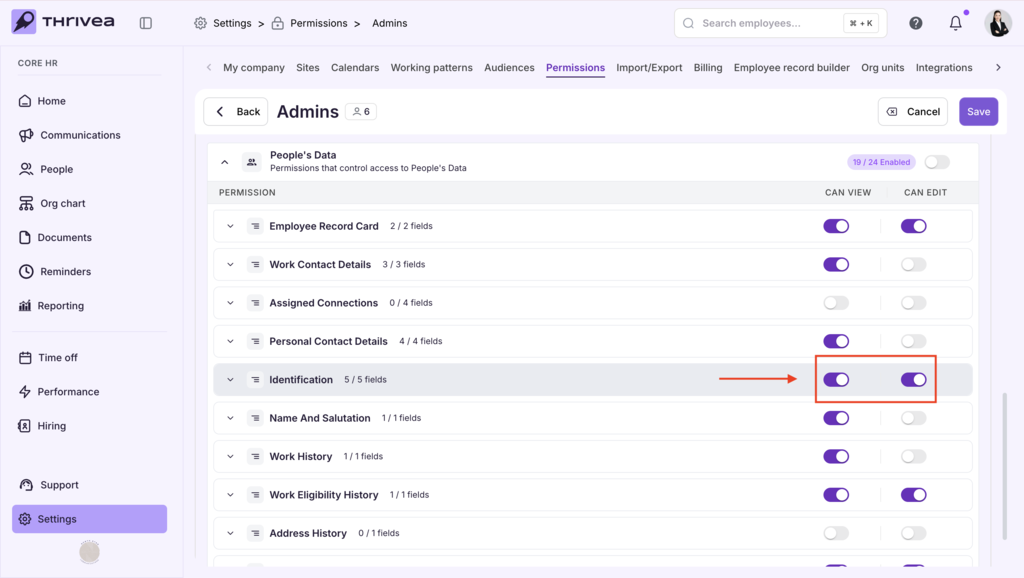
8b. Use Individual Selection (Left Arrow) to expand the category and configure specific fields.
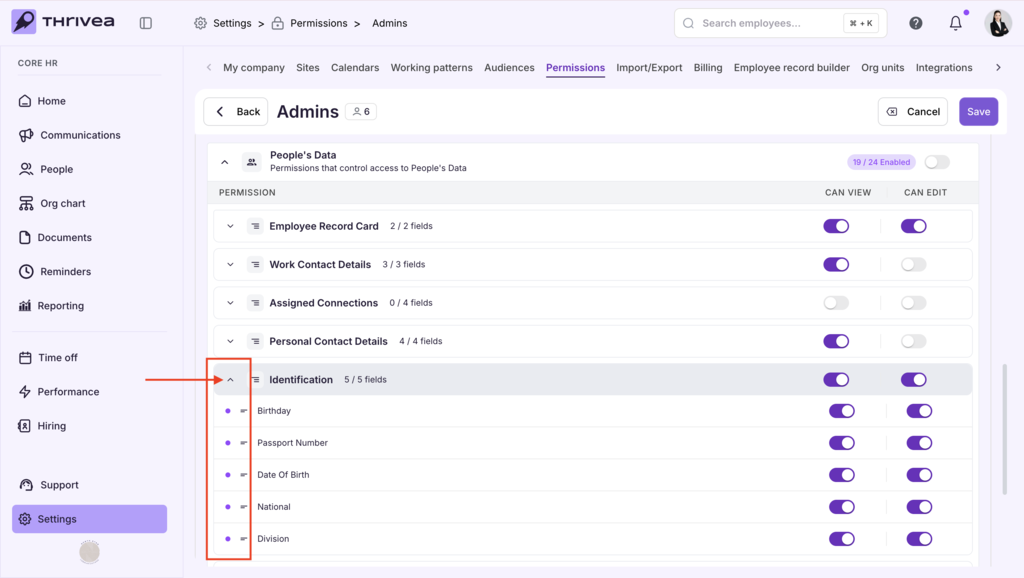
9. If using Individual Selection, assign permissions per field:
Select Can View or Can Edit as needed.
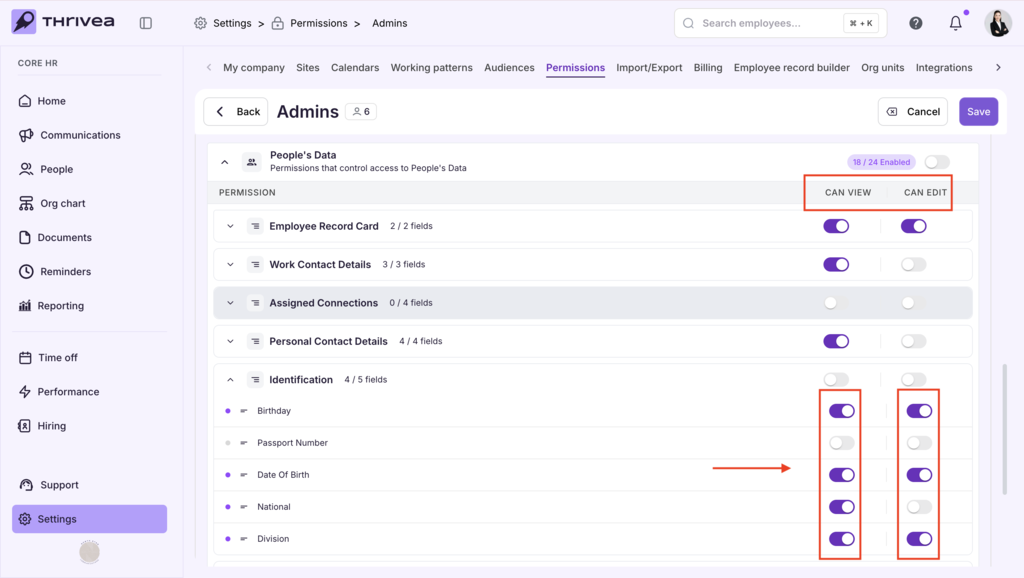
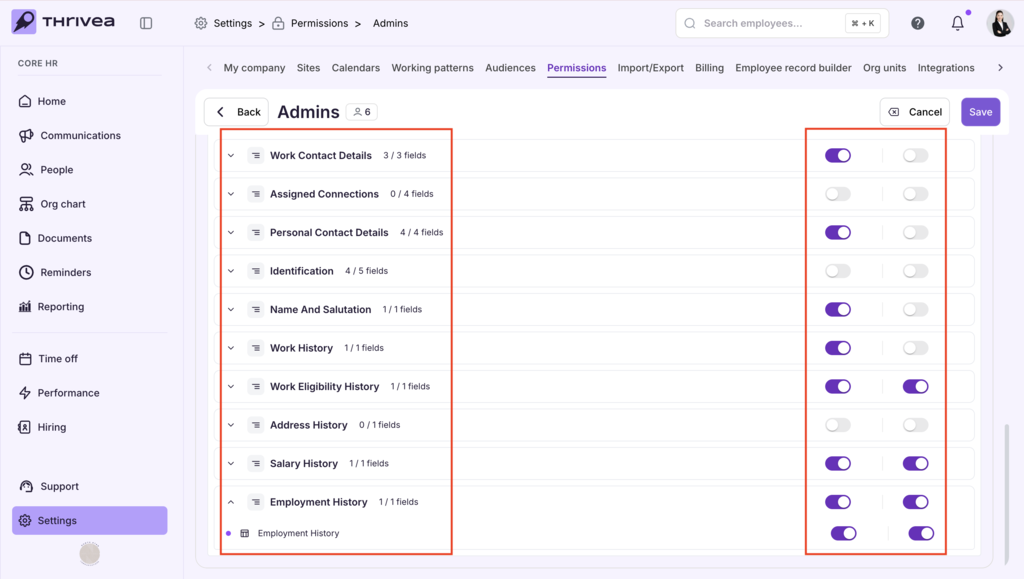
10. Configure access within the available Data Categories:
- Employee Record Card: basic profile and name info.
- Work Contact Details: work email, mobile, and documents.
- About: social links, hobbies, and personal preferences.
- Assigned Connections: assigned buddies, HRBPs, and managers.
- Personal Contact Details: private addresses and contact info.
- Identification: ID numbers and personal documents.
- Name and Salutation: titles and formal naming.
- History Fields: Work, Eligibility, Address, Salary, and Employment history.
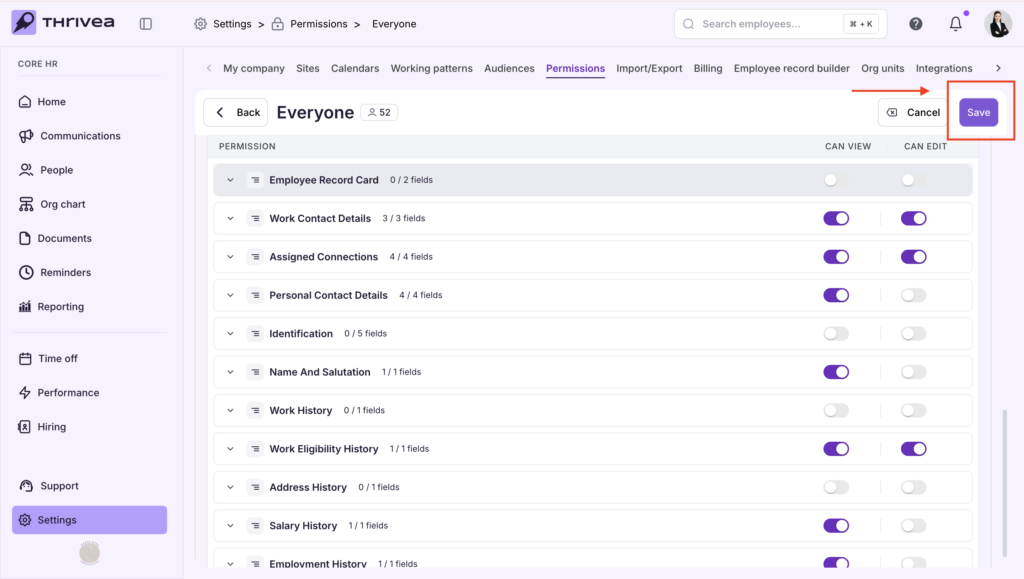
11. Save and create group – Once all settings are configured, select Save (top-right corner) to save changes.
Note: If you are setting the Permission group for the first time, you will see Create instead of Save button in the top-right corner.