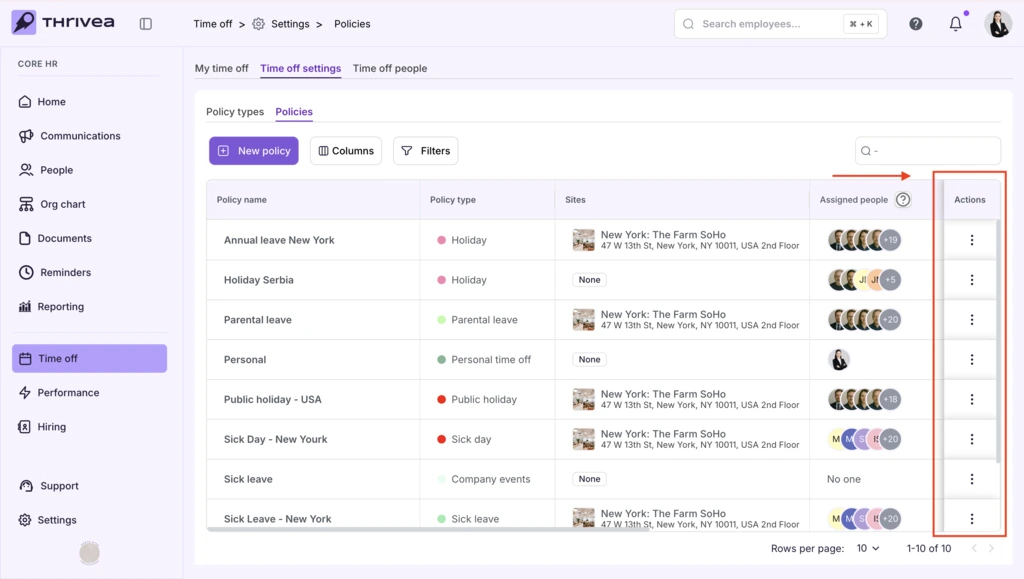

Creating Time Off Policies
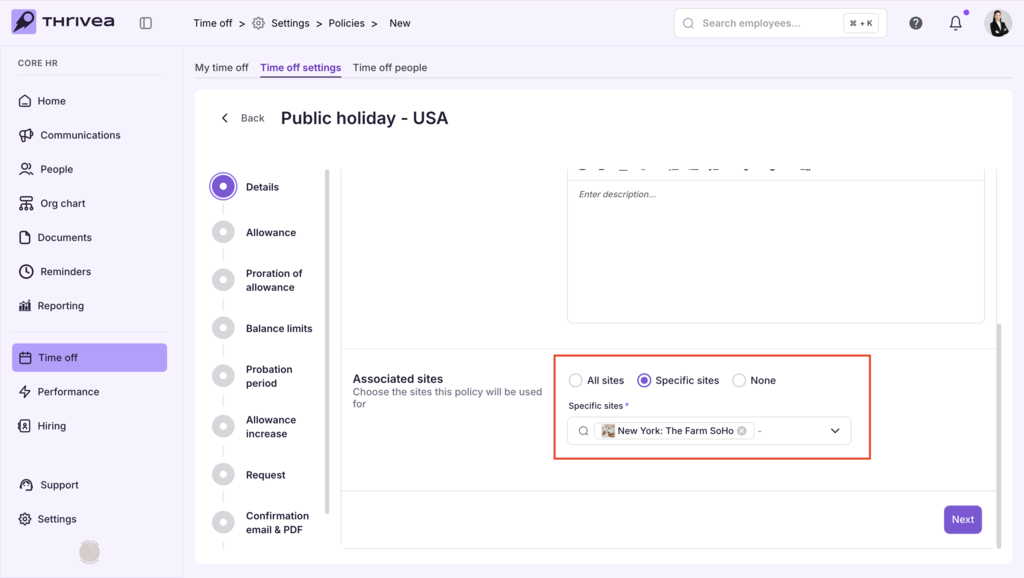
Note: Policy Type, Policy Name, Specific Sites and 1st approver are required to create a New Time Off Policy. All other data is optional.
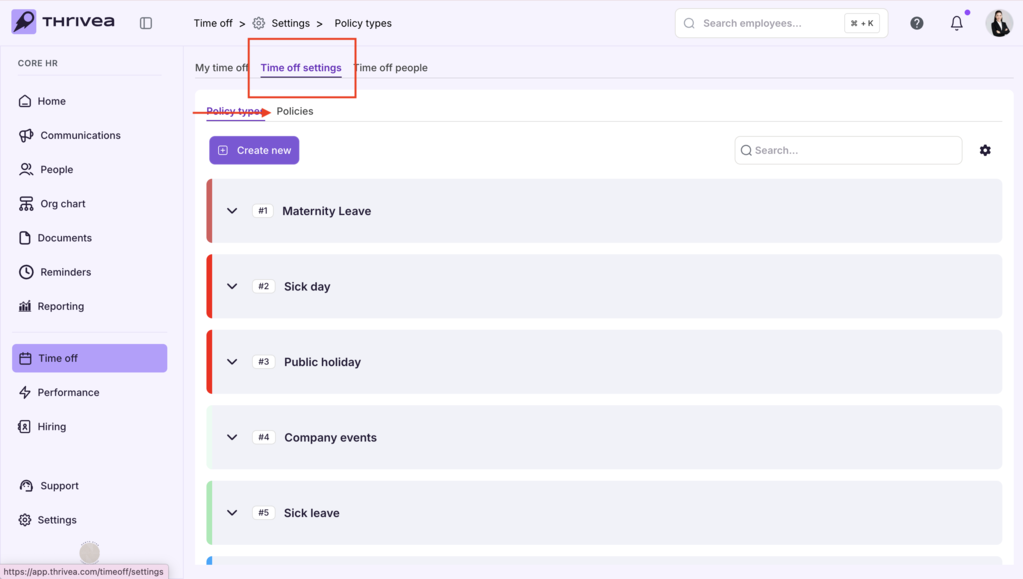
1. Navigate to Time off settings > Policies.
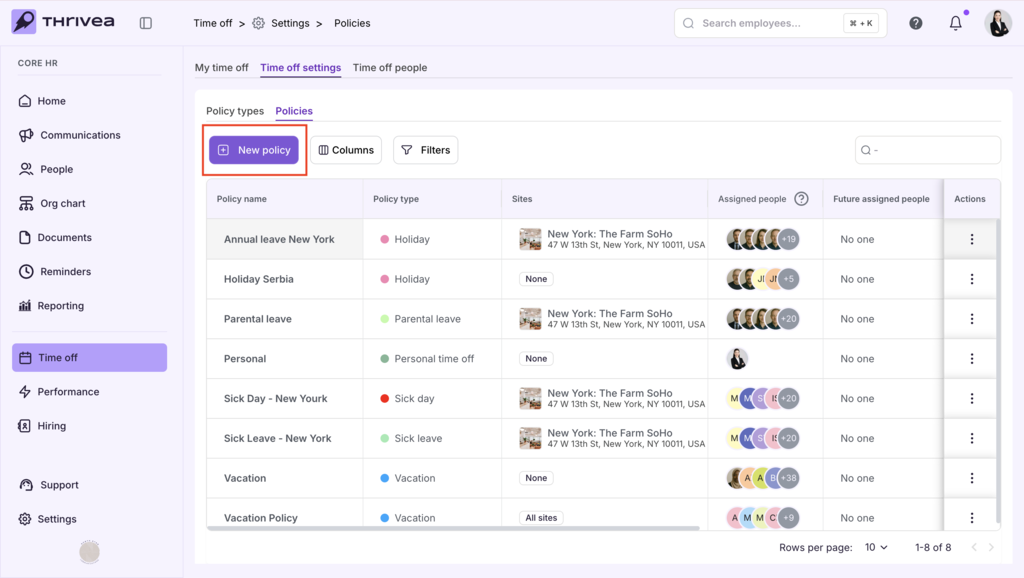
2. Click the New policy button.
3. Enter a Policy Type.
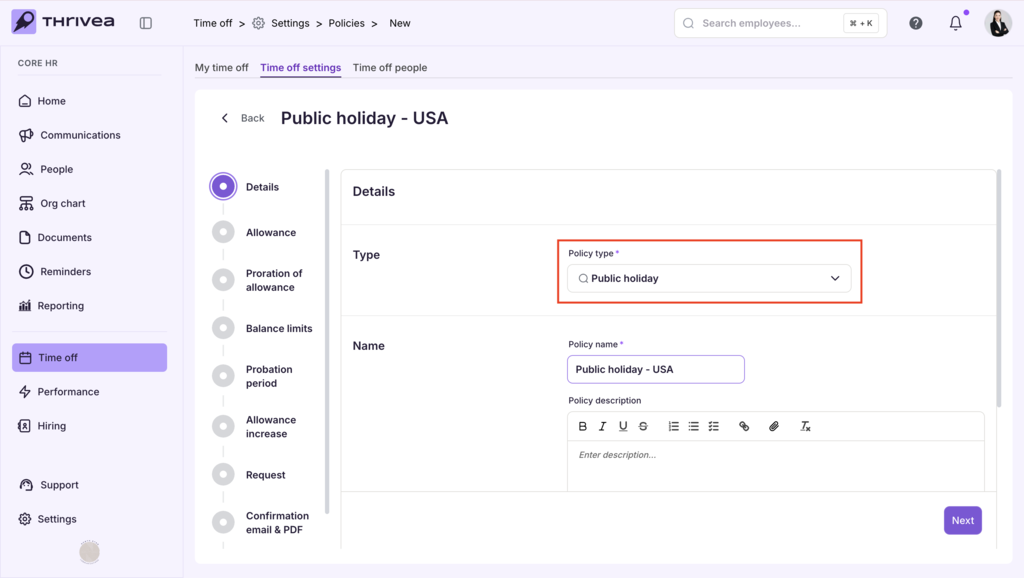
3. Enter a Policy Name.
4. Use the Site dropdown to link the policy to a specific office or country.
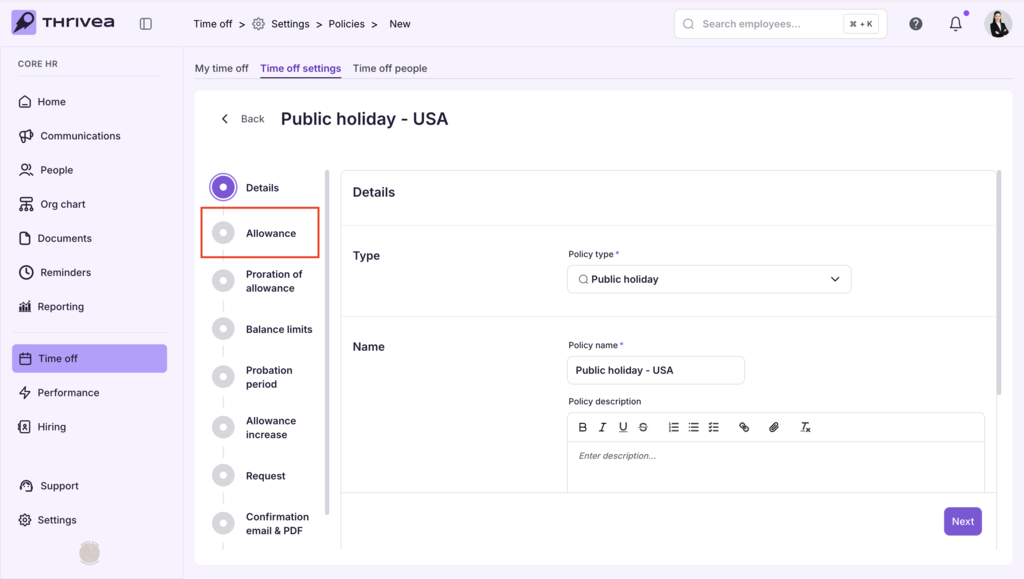
5. Next, navigate to Allowance.
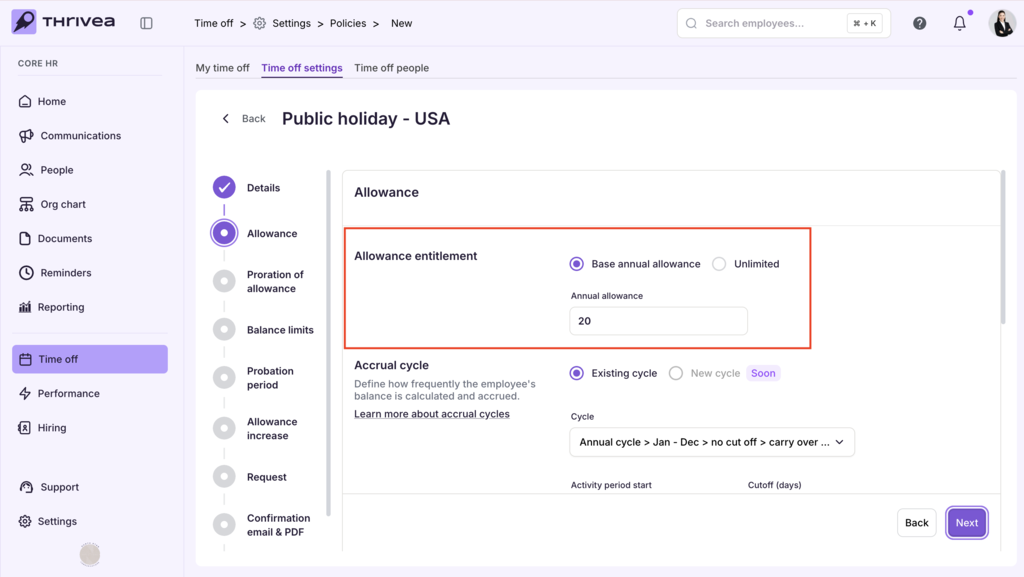
6. Enter Requested Allowance Information: Allowance entitlement.
If there is a limit to the number of days allowed for this type of policy, enter the Base annual allowance — the number of days granted per year. If the policy is unlimited – select Unlimited.
7. Optionally, fill in other Allowance information: Accrual cycle, Accrual timing, Simulation, System display.
8. For additional optional information, navigate to:
8a. Proration of allowance
8b. Balance limits
8c. Probation period
8d. Allowance increase
8e. Request
8f. Confirmation email & PDF
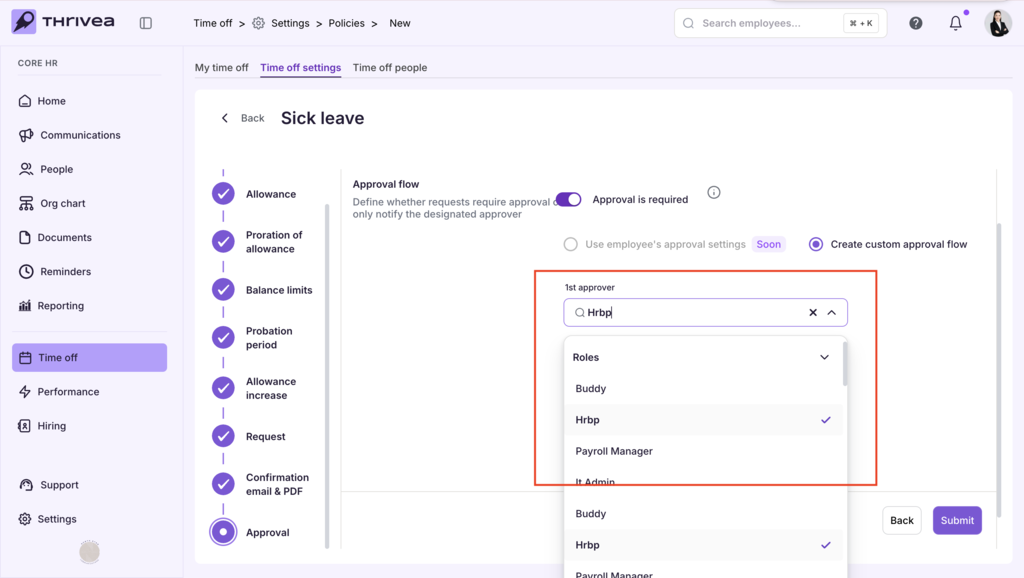
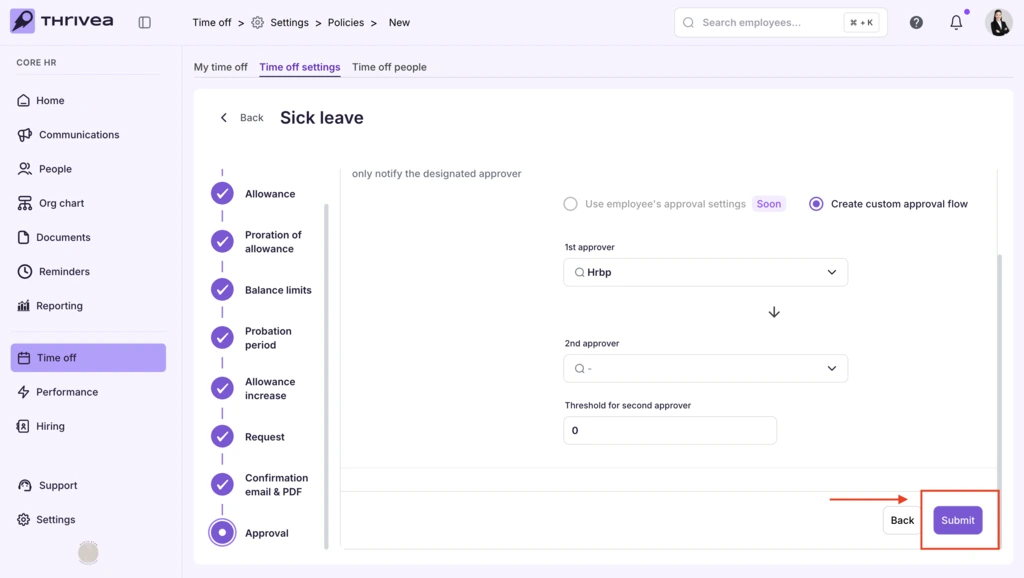
9. Enter approval information.
Requested: Fill in First approver field.
10. Review the configuration and click Submit.
11. To make changes later, open the three dots menu (⋮) next to the policy to edit or archive it.